The appliance companion
Set up Tvheadend Player Appliance, the optional app that opens Tvheadend Player when the TV turns on and takes over the TV, Guide and Recordings buttons.
Tvheadend Player Appliance is a separate, optional app for people who watch TV through Tvheadend instead of the TV’s built-in tuners. It makes Tvheadend Player behave like the TV’s own tuner app:
- It can open Tvheadend Player when the TV turns on or wakes from standby. That stays off until you turn on Open when the TV turns on.
- It takes over remote buttons the manufacturer keeps for its own apps. Out of the box the TV button opens live TV, the Guide button opens the Guide and the Recordings button opens Recordings. You can pick other buttons, or none.
- It can be the TV’s home app, so HOME goes to Tvheadend Player. Not every TV allows that.
It works with Tvheadend Player from Google Play or from the GitHub releases. Its screens are in English only. I built it for my mum’s TVs and run it on all of ours: TCL Google TVs, Sony Bravia 8 and A80J TVs, and an Nvidia Shield. The companion is still a work in progress, so expect rough edges and changes between releases.
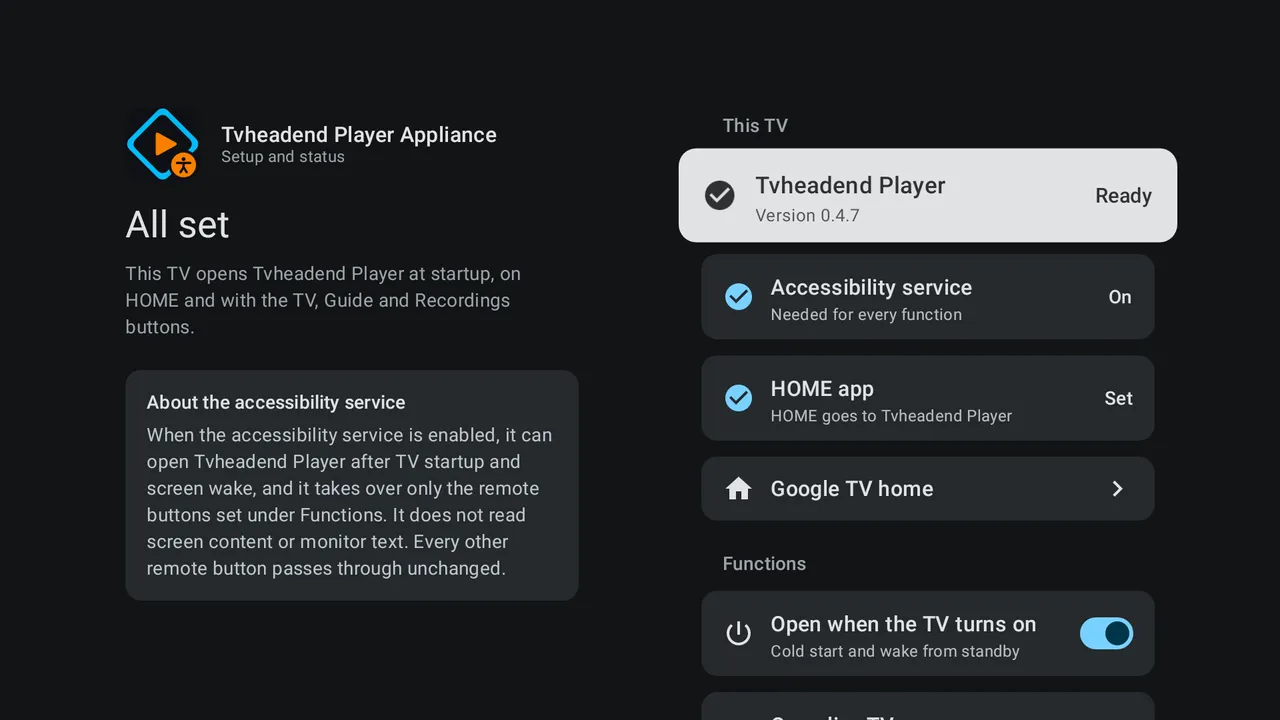
Setup
- If you installed the Appliance build of Tvheadend Player from 0.4.5 or older, uninstall it first. The companion took over its app ID, and installing over it would keep the old app’s data.
- Install Tvheadend Player and connect it to your server.
- Get
tvheadend-player-<version>-appliance.apkfrom the latest release onto the TV and install it, with a downloader app, a file manager oradb installfrom a computer. - Open Tvheadend Player Appliance from the app list. It shows what’s still missing, and each row opens the Android settings page you need.
- Turn on the accessibility service Tvheadend Player appliance entry.
- Allow the companion to install unknown apps, so it can install its own updates.
- Optionally, make it the home app.
- Under Functions, choose whether Tvheadend Player opens when the TV turns on, and check that the buttons do what you want.
When the companion says All set, you’re done.
The accessibility service only opens Tvheadend Player when the TV turns on or wakes, if you turned that on, and reacts to the buttons set under Functions. It doesn’t read what’s on the screen, and every other button works as before.
Choosing other buttons
Under Functions, choose Open live TV, Open the Guide or Open recordings, then Set a button or Change button, and press the button on the remote. Arrows, OK, Back and HOME can’t be used, and Back cancels. Some buttons, like power and a few app buttons, never reach apps; when nothing arrives, the companion says No button arrived.
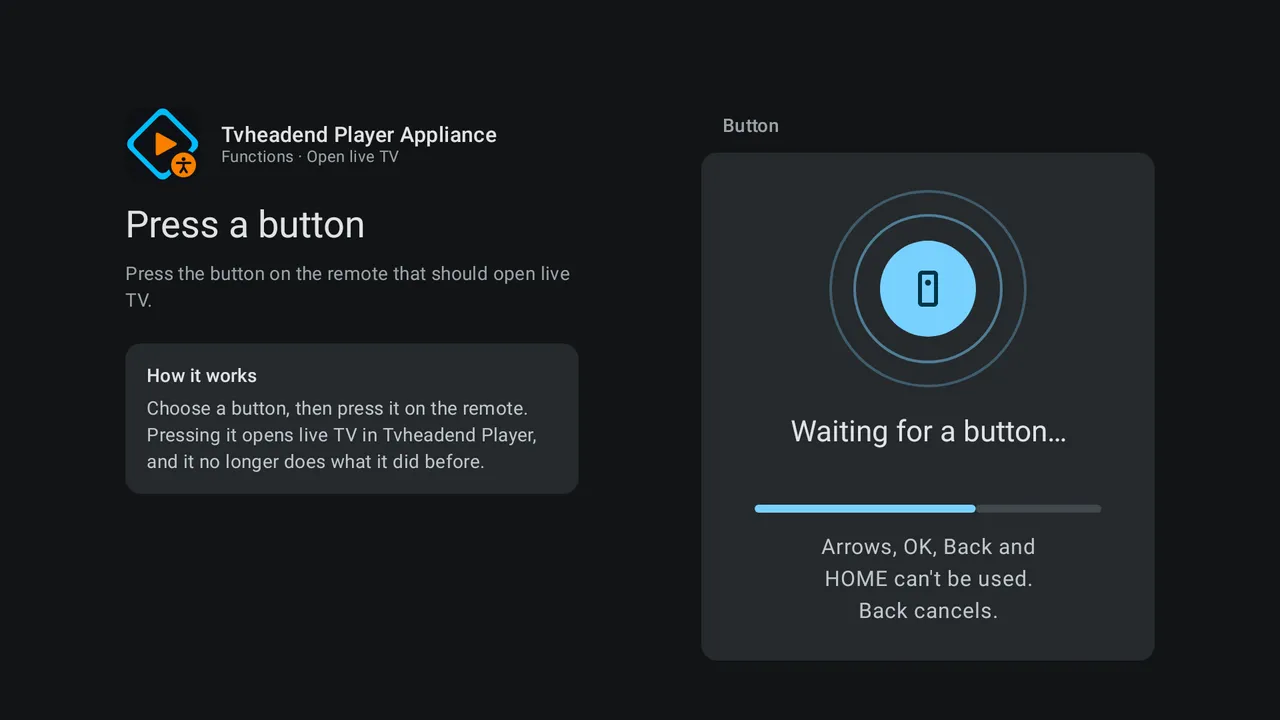
The button you pick no longer does what it did before on this TV. To get that back, choose Remove button, or Restore default to go back to the TV, Guide or Recordings button. Each button belongs to one function: pick one that another function uses, and it moves over.
Updates
The companion checks the GitHub releases and, with Automatic updates on, installs a new release only while the TV is in standby. Check for updates looks right away, and Update now installs a waiting update straight away.
If the companion says Blocked
The service is on in Android settings but isn’t running. Switch it off and on once. If it still says Blocked, the TV is stopping it from starting. On TCL TVs that’s Safety Guard, and it has no switch for it, so it takes one ADB command from a computer. Turn on debugging in the TV’s developer options, then run:
adb connect <tv-address>
adb shell cmd appops set at.bernhardberger.tvhplayer.appliance APP_AUTO_START allow
Some TCL models, like the G08, call it AUTO_START. If the command says
Unknown operation string, use this instead:
adb shell cmd appops set at.bernhardberger.tvhplayer.appliance AUTO_START allowSwitch the service off and on again. The setting stays when the companion updates itself.
TV notes
TCL (G08, G10)
- The TV ignores other home apps, so HOME keeps going to Google TV. Startup and the remote buttons still work through the accessibility service.
- The TV button (the one with the TV symbol) sends its own code, 4001. The companion knows it, so it opens live TV out of the box.
- The remote has no Guide button. To open the Guide with a button, set one under Functions, LIST for example. LIST then no longer opens the channel list in Tvheadend Player.
- Safety Guard blocks the service until you run the ADB command above.
Something missing or wrong on this page? Tell me on GitHub.