Get started
Install Tvheadend Player, connect it to your Tvheadend server and find your way around the app.
On this page
You need three things: a Tvheadend server, an Android TV or Google TV device, and its remote. Setup takes a minute: install the app, tell it where your server is, sign in, and start watching.
What you need
- A Tvheadend server the TV can reach over HTSP, Tvheadend’s streaming protocol. It has to speak HTSP 36 or newer, which means Tvheadend 4.3. If your server is older, the app says Tvheadend version not supported.
- An Android TV or Google TV device on Android 9 or newer.
- A Tvheadend account with streaming access, or a server that lets you in without signing in. Your Tvheadend account lists the rights the app uses.
Install the app
Tvheadend Player is in beta on Google Play until it’s published there, and anyone can join.
Join the beta
- Join the tvheadend-player-testers group with the Google account that’s signed in on your TV.
- On a phone or computer signed in with that account, open the beta page on Google Play and select Become a tester.
- Follow the Google Play link on that page, select Install and pick your TV. The app doesn’t show up when you search Play on the TV yet.
Leaving the group also takes you out of the beta.
From GitHub
Every version is also on GitHub
as an APK. Take the file ending in -play.apk. To install it, allow installs
from unknown sources for the app you open it with, a file manager for example.
Both are signed with the same key, so either one updates the other.
Connect to your server
The first start walks you through three steps: Server, Account and Connect.
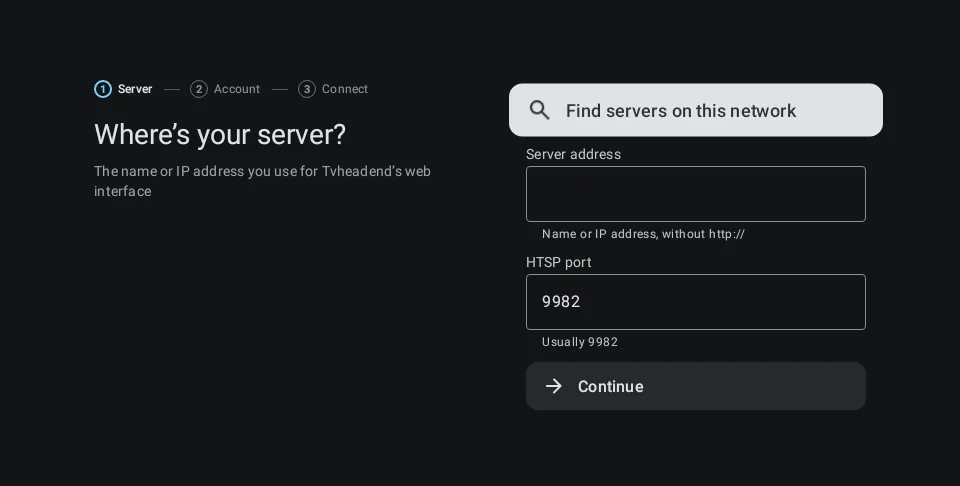
Server. Select Find servers on this network to list the Tvheadend servers that announce themselves on your network, and pick yours. If yours isn’t listed, fill in the fields yourself:
- Server address: the name or IP address you use for Tvheadend’s web
interface, without
http://. - HTSP port: usually 9982. Leave it unless you changed it in Tvheadend.
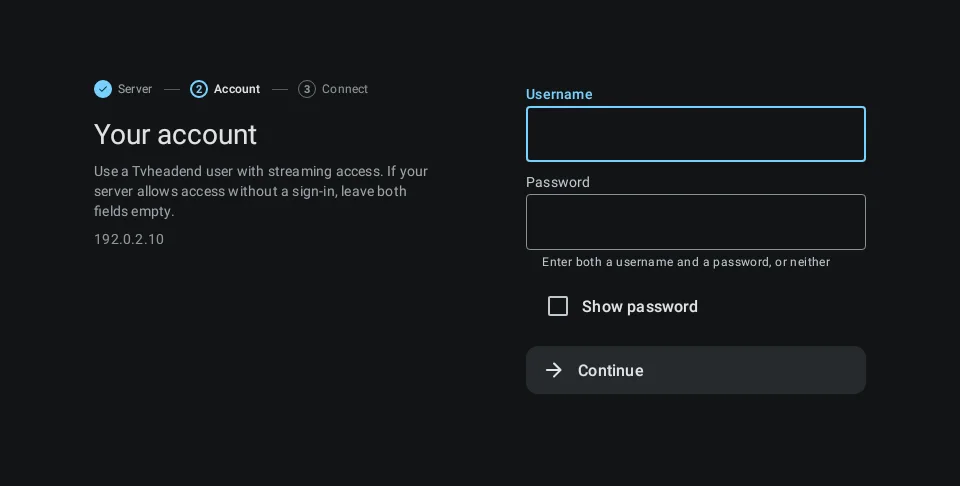
Account. Enter your Tvheadend Username and Password. If your server lets you in without signing in, leave both fields empty.
Connect. Continue tests the connection before anything is saved. When it works, the app says which server it reached. Start watching saves the connection and opens Home.
If the test fails, the app says why and offers what fits: Try again, Change address or Change account. When the server doesn’t answer at all, Continue anyway saves the connection and starts offline; the app connects once the server answers. What each message means is under Connecting to the server.
Find your way around
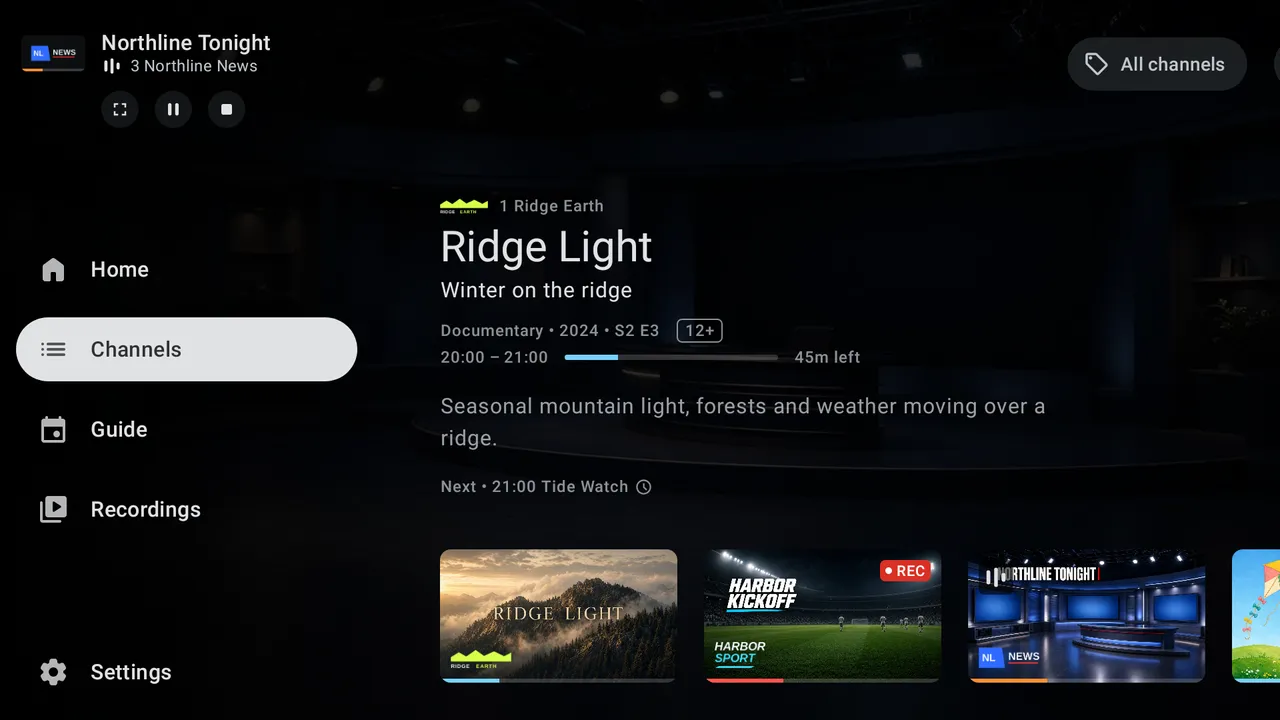
Press Left at the edge of a page to open the side menu. It has Home, Channels, Guide, Recordings and, at the bottom, Settings. Up and Down pick one, and OK opens it.
- Home starts with what you watched last, then what’s on now, programs by genre and your recordings. OK on a card starts the channel or plays the recording.
- Channels lists your channels with what’s on. View options switches between three layouts and between program pictures and channel logos.
- Guide is the program grid. OK on a program opens its details, where you can watch or record it.
- Recordings has three tabs: Browse for what you recorded, Schedule for what’s recording now and coming up, and Problems for recordings that failed or were canceled. View options in Browse sorts them into folders by server folder, channel or genre.
To watch, press OK on a channel or a card under On now. In the player, Up or Down shows the controls, Back leaves. The remote has every key on every screen.
More than one server or account
The app can keep several connections, to other servers or to other users on the same server, and uses one at a time. Go to Settings → Connection:
- Add connection sets up another one, with the same steps as the first start.
- Select a saved connection and choose Use this connection to switch to it.
- Edit connection on the same page changes its server address, port and account. Name gives it a name of your own.
Next steps
Channel logos, program pictures, favorites and genre colors all come from your server. Set up your server for the app shows what to set in Tvheadend so they show up.
Something missing or wrong on this page? Tell me on GitHub.